
Your photos, documents, and personal files can be difficult or impossible to replace if a device is lost, damaged, or affected by a technical problem. A reliable backup system gives you extra copies of important files and makes it easier to recover them when needed.
The good news is that backing up does not have to be complicated. With a few simple tools and a regular routine, you can protect your files at home, while traveling, and across multiple devices.
Start by Choosing Which Files to Back Up
Before selecting a backup method, make a list of the files you want to protect. This helps you focus on important content and avoid wasting storage space.
Common files to include are:
– Photos and videos
– Personal documents
– School or work files
– Tax and household records
– Creative projects
– Contact lists
– Music and other purchased media
– Device settings and app data
You may not need to back up every downloaded file. Temporary items, duplicate files, and applications can often be downloaded again. Focus first on files that would be difficult, expensive, or impossible to replace.
It can also help to organize your files into clear folders. For example, you might create folders for “Photos,” “Documents,” “Projects,” and “Family Records.” A simple folder structure makes backups easier to manage and future file recovery faster.
Follow the 3-2-1 Backup Rule
A useful approach is the 3-2-1 backup rule:
– Keep at least three copies of important files.
– Store those copies on two different types of storage.
– Keep one copy in a different location.
For example, your photos could be stored on your computer, an external hard drive, and a cloud storage service. If your computer is damaged, you still have two other copies. If a local problem affects your home, the online copy may still be available.
The 3-2-1 rule is a flexible guideline rather than a requirement. Even adding one extra copy is safer than keeping everything in one place.
Use Cloud Storage for Convenience
Cloud storage saves files on remote servers that you access through the internet. Many services can automatically back up photos and files from your phone, tablet, or computer.
Cloud storage is useful because it can:
– Back up files automatically
– Keep files available on multiple devices
– Protect against loss or damage at home
– Make sharing easier
– Reduce the need to manage physical drives
When choosing a cloud service, compare storage limits, supported devices, automatic backup features, file recovery options, and account security settings. Some services focus on photo libraries, while others are designed for general file storage.
Turn on automatic photo backup for your phone if the service supports it. Review the settings carefully, especially if your phone uses mobile data. You may prefer to allow backups only when connected to Wi-Fi.
Remember that cloud storage is not a complete solution by itself. Files can be accidentally deleted, accounts can become inaccessible, and storage plans can change. For especially important files, keep another copy on a separate device.
Add an External Drive
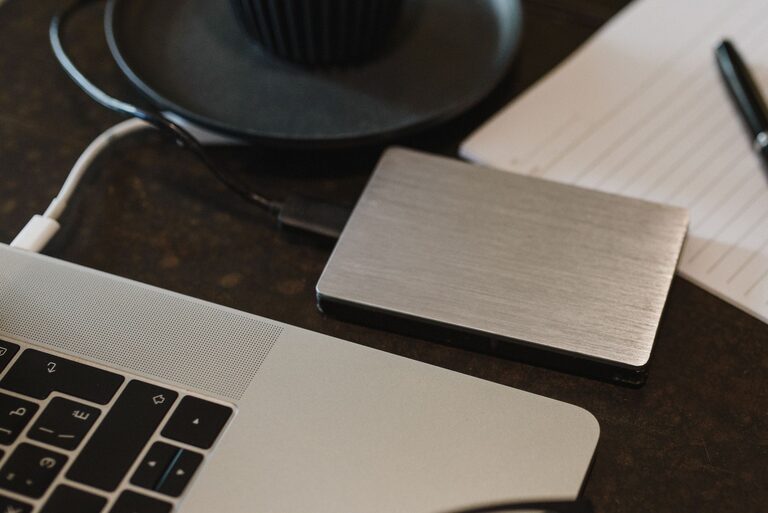
An external hard drive or solid-state drive provides a convenient local backup. These drives connect to a computer through a cable and are available in different storage sizes.
External drives are helpful for:
– Large photo and video collections
– Full computer backups
– Files that do not need to be accessed every day
– A second copy of cloud-stored files
– Offline storage
Choose a drive with enough space for your current files and future growth. Photos and videos can take up more space than expected, so buying a little extra capacity can make the drive useful for longer.
After copying files to the drive, disconnect it when the backup is complete. Keeping the drive connected all the time may expose it to the same problems as your computer, including accidental deletion or certain types of malware. Store the drive in a cool, dry place away from liquids and extreme temperatures.
For additional protection, keep a second external drive in another location, such as a trusted family member’s home or a secure office space.
Turn On Automatic Backups
Manual backups are easy to forget. Automatic backup tools can copy new and changed files on a schedule or whenever the device is connected to the internet or an external drive.
Check the backup options included with your computer or mobile device. Many systems offer tools that can save personal files, create a full device backup, or sync selected folders.
When setting up automatic backups:
- Select the folders that contain important files.
- Choose how often backups should run.
- Include photos, documents, and other personal data.
- Check how long deleted files are kept.
- Confirm that the backup completes successfully.
Automatic syncing and backup are not always the same thing. Syncing mirrors changes between locations, so deleting a file in one place may delete it elsewhere. A backup service may keep earlier versions or deleted files for a certain period. Learn how your chosen tool works before relying on it.
Protect Your Accounts and Drives
Backups should be easy for you to access but difficult for others to misuse. Use a strong, unique password for your cloud storage account and enable two-step verification when available.
You should also:
– Keep your recovery email and phone number current.
– Avoid sharing account passwords.
– Install system and app updates.
– Use device locks, such as a passcode or password.
– Store external drives securely.
– Consider encryption for sensitive files.
If a backup drive includes private documents, encryption can help prevent unauthorized access if the drive is lost. Many computers and backup programs include encryption options. Follow the instructions for your operating system or storage service.
Test Your Backups Regularly
A backup is only useful if the files can be restored. Test your backups several times a year by opening a few photos and documents from the backup location.
For a more complete check, restore a small folder to a different location and confirm that the files open correctly. If you use a full-device backup, review the steps for restoring it before an emergency occurs.
During each check, look for:
– Recent files and folders
– Missing photos or documents
– Failed backup notifications
– Low storage space
– Incorrect backup schedules
– Expired cloud subscriptions
– Drives that are not recognized
Set a calendar reminder to review your backup system every few months. This small habit can identify problems before you need the files.
Create a Simple Backup Routine
A practical routine might look like this:
Every day
Let your phone or computer automatically upload new photos and important files when possible.
Every week
Connect your external drive and run a backup. Check for any error messages.
Every month
Review your cloud storage and remove unnecessary duplicates. Confirm that recent files are available.
Every few months
Test file restoration and check your account security, storage space, and backup settings.
Once a year
Replace aging drives if needed and review whether your backup plan still fits your growing collection.
Make Backup Part of Your Organization
Backing up files works best when it becomes a normal part of managing your devices. Use clear file names, sort photos into folders, and remove obvious duplicates before creating a backup.
A simple system might include automatic cloud backup for everyday files, a weekly external-drive backup, and an additional copy stored away from your home. This combination offers convenience, flexibility, and protection against several common problems.
Start with the files that matter most. Even a basic backup today is better than waiting until after a device fails or a file disappears.